Auto-Translate
Automatically translate every page as you read through a chapter - no button presses needed.
What is Auto-Translate?
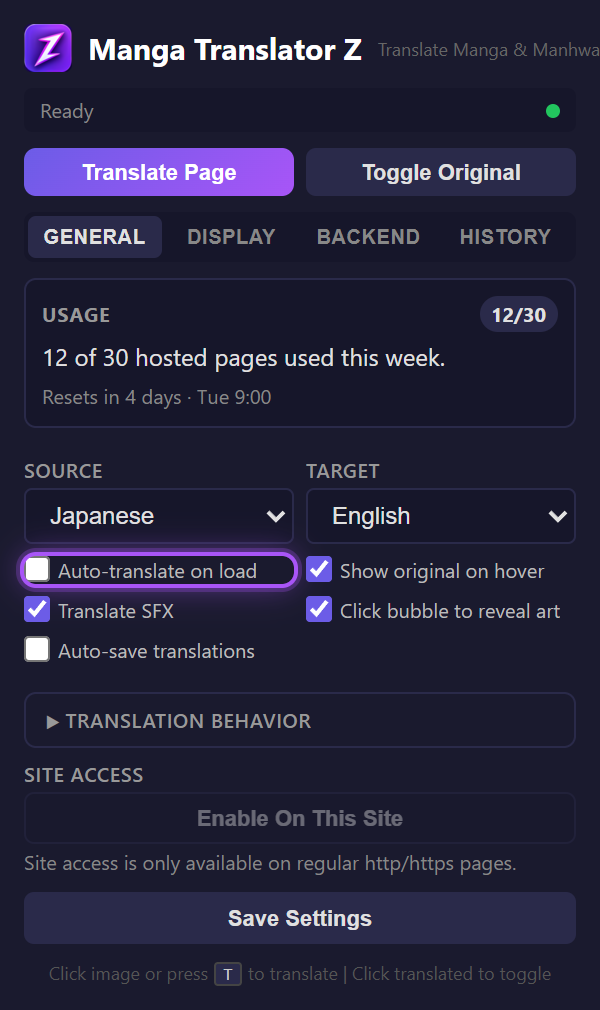
When enabled, the extension automatically detects manga images on every page load and translates them without any user action. Perfect for binge-reading sessions where you want to flip through pages and have everything translated instantly.
Enabling Auto-Translate
- Open the extension popup
- In the General tab, check "Auto-translate"
- Click Enable on this site to grant site access for the manga reader
How It Works
- On page load, the content script scans for manga images (at least 300px wide and tall, height/width ratio above 0.4)
- If auto-translate is enabled and site access is granted, translation begins immediately without requiring a reload
- SPA readers (single-page apps that change URL without reloading) are supported via MutationObserver watching for URL changes
- Lazy-loaded images are caught by a MutationObserver that watches for new img elements added to the DOM
Long Chapters and Webtoons
Long-strip chapters are translated as their page images enter the viewport. Cover grids and navigation artwork are filtered separately, so a chapter is not rejected merely because it contains many page images.
Site Access
Auto-translate needs persistent site access (not just temporary tab access). Grant access per-site from the popup's "Enable On This Site" button. You can always translate on demand with T without granting site access.
If Auto-Translate Does Not Start
- Confirm that Auto-translate on load is enabled.
- Open the chapter page and click Enable on this site.
- Press T. If manual translation works, reload the chapter once and try auto-translate again.
- If neither mode works, email support@mangatranslatorz.com with the reader URL and the error shown in the popup.